
Tutorials
Create and revise your first diagram
Make a two-node flow, inspect its five exports, then change a label by editing its source.
This lesson needs no account, paid model, or browser: a diagram renders entirely on your machine. Before starting, install SlopCamera so the slopcamera command is available. Use a new empty working directory so the lesson cannot replace existing artwork.
mkdir slopcamera-first-diagram
cd slopcamera-first-diagram
Create the source
slopcamera diagram init first.diagram.json
Open first.diagram.json. Its two shapes are named source and result, labeled Source and Result, with one directed edge. Their horizontal stack supplies the spacing; the file remains the editable source.
Check and render it
slopcamera diagram check first.diagram.json --strict
slopcamera diagram render first.diagram.json
The strict check should report no findings. Rendering uses the document's name, example-flow, for its export filenames. It creates these five files beside the JSON:
example-flow.tldrexample-flow.light.svgandexample-flow.dark.svgexample-flow.light.pngandexample-flow.dark.png
Open both PNG files. You should see the same two boxes and connecting arrow on backgrounds suited to light and dark presentation. The .tldr file is editable interchange; you do not need to open it to complete the lesson.
Change one label
In first.diagram.json, find the shape whose id is result. Change only its label from "Result" to "Reviewed", then save the file.
slopcamera diagram check first.diagram.json --strict
slopcamera diagram render first.diagram.json
Open the PNG again. The right-hand box now reads Reviewed. The render command replaced the five exports while keeping your JSON source. Editing a PNG directly would not have preserved that relationship.
Try a larger diagram
This separate example applies the same source-and-revision pattern to a branching flow. Three kinds of media enter a project, then leave as a preview or delivery. Its positions and colors distinguish inputs, the project, and outputs; labels and arrows preserve the meaning without color.
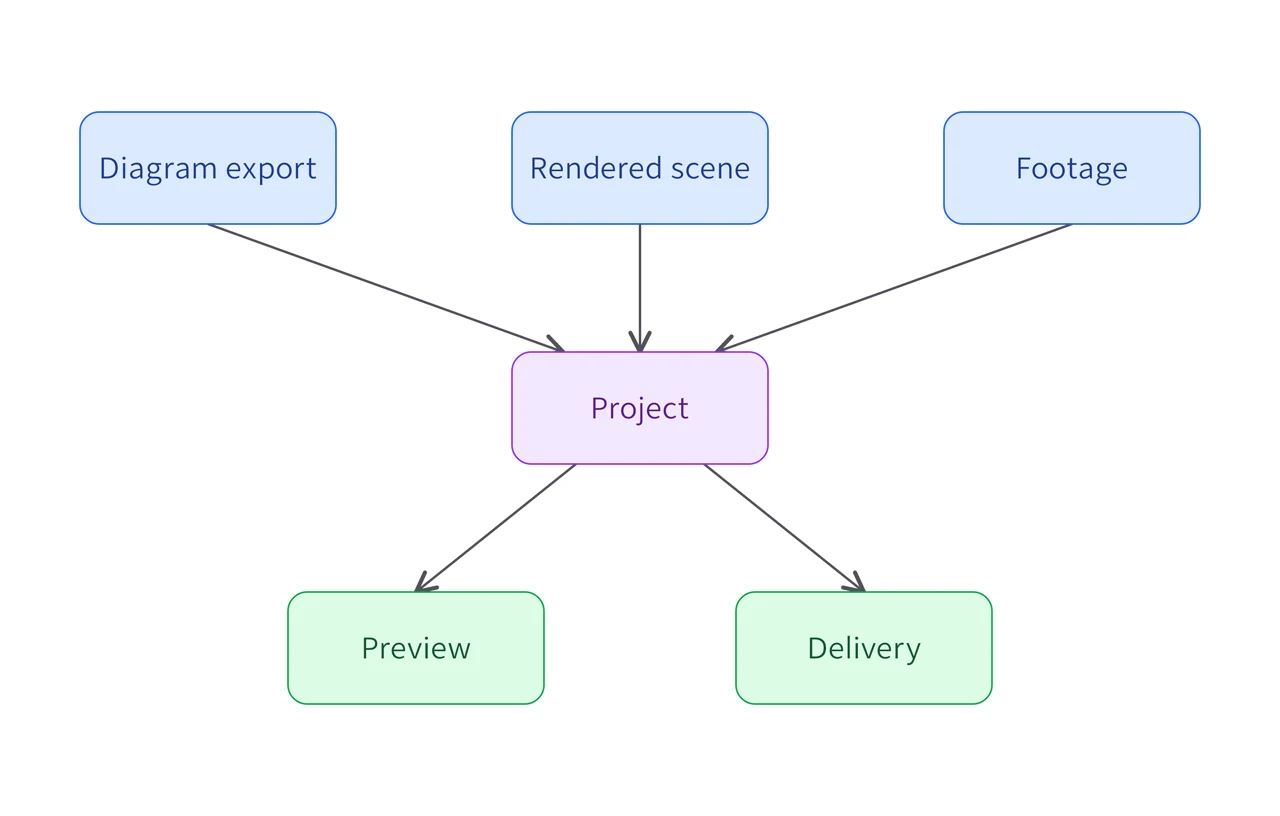
Positioned diagram
From source to deliveryThree visual inputs converge in an editable project, then branch into preview and delivery. The diagram itself stays editable.
Download this example
Requires: Slopcamera 3.2.8 or later and Bun. Local rendering; no model account.
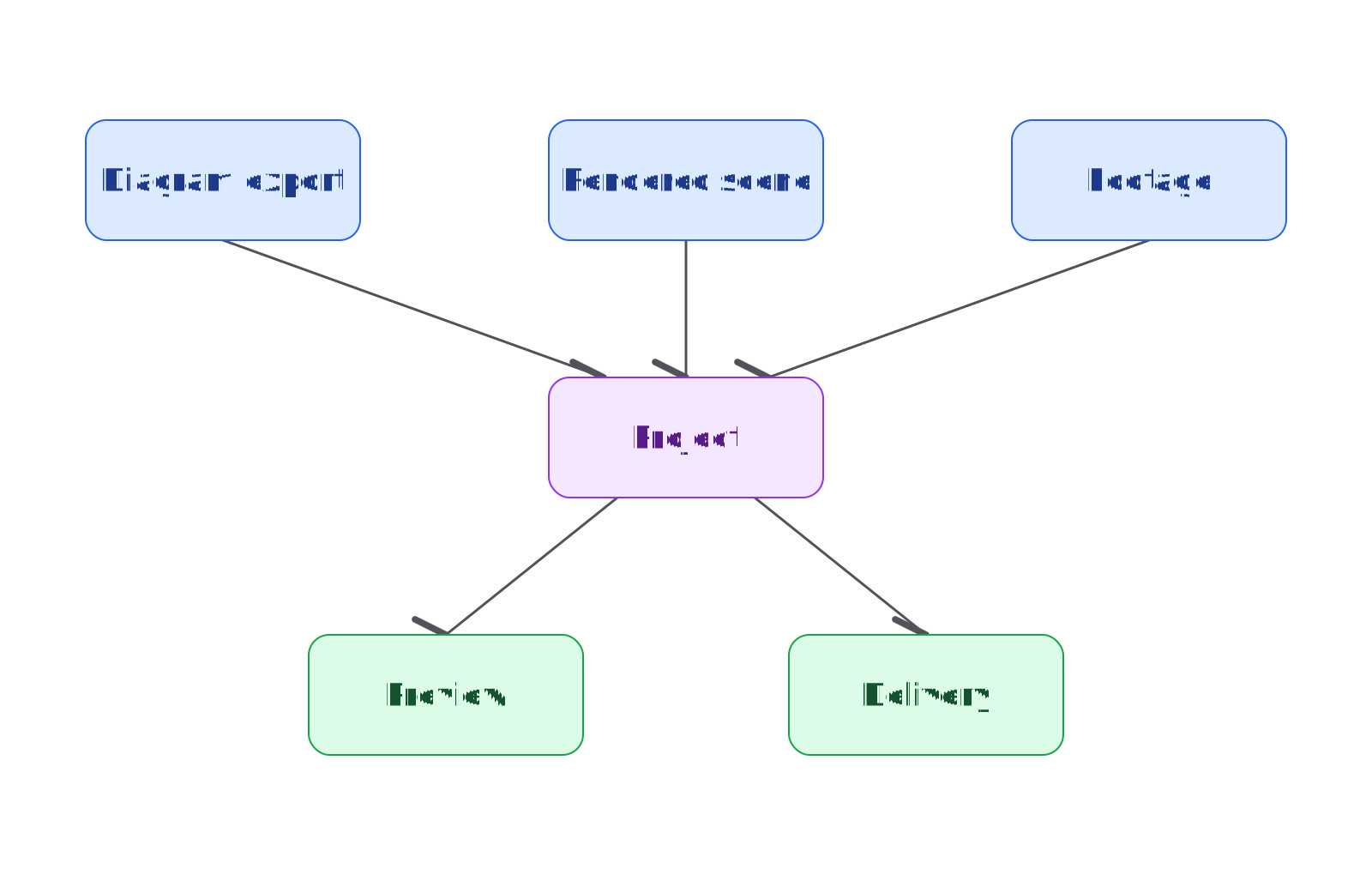
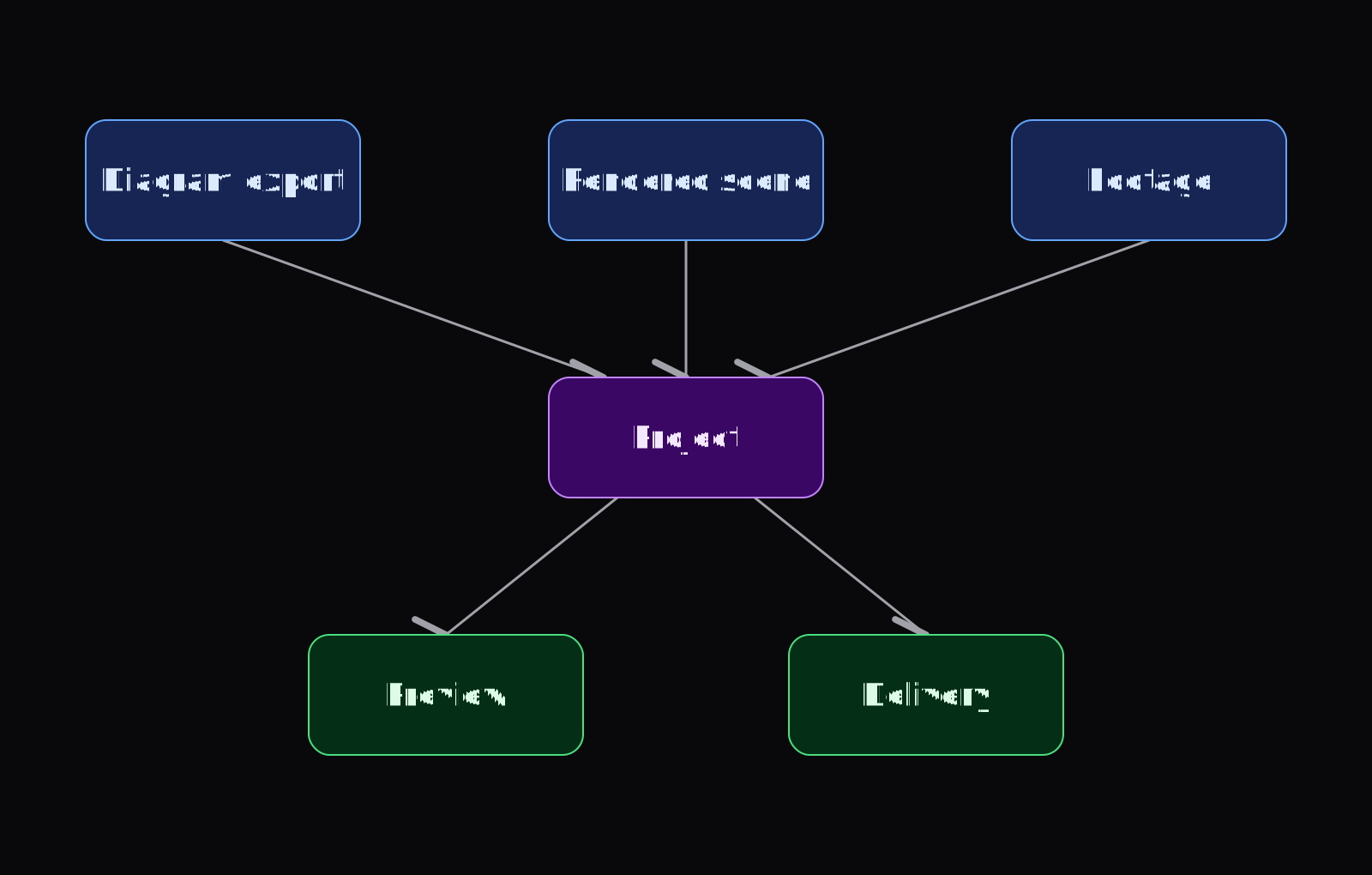
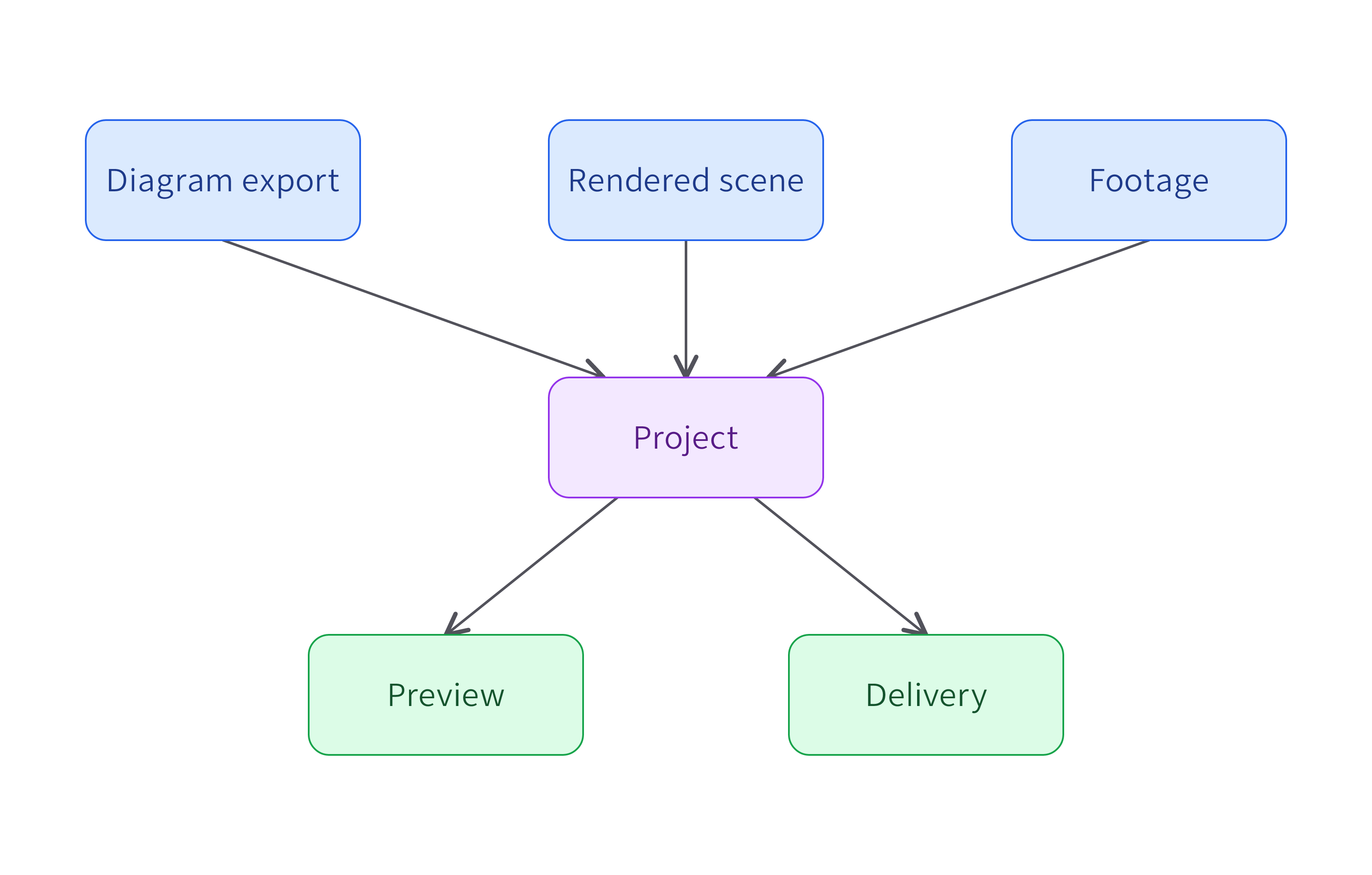
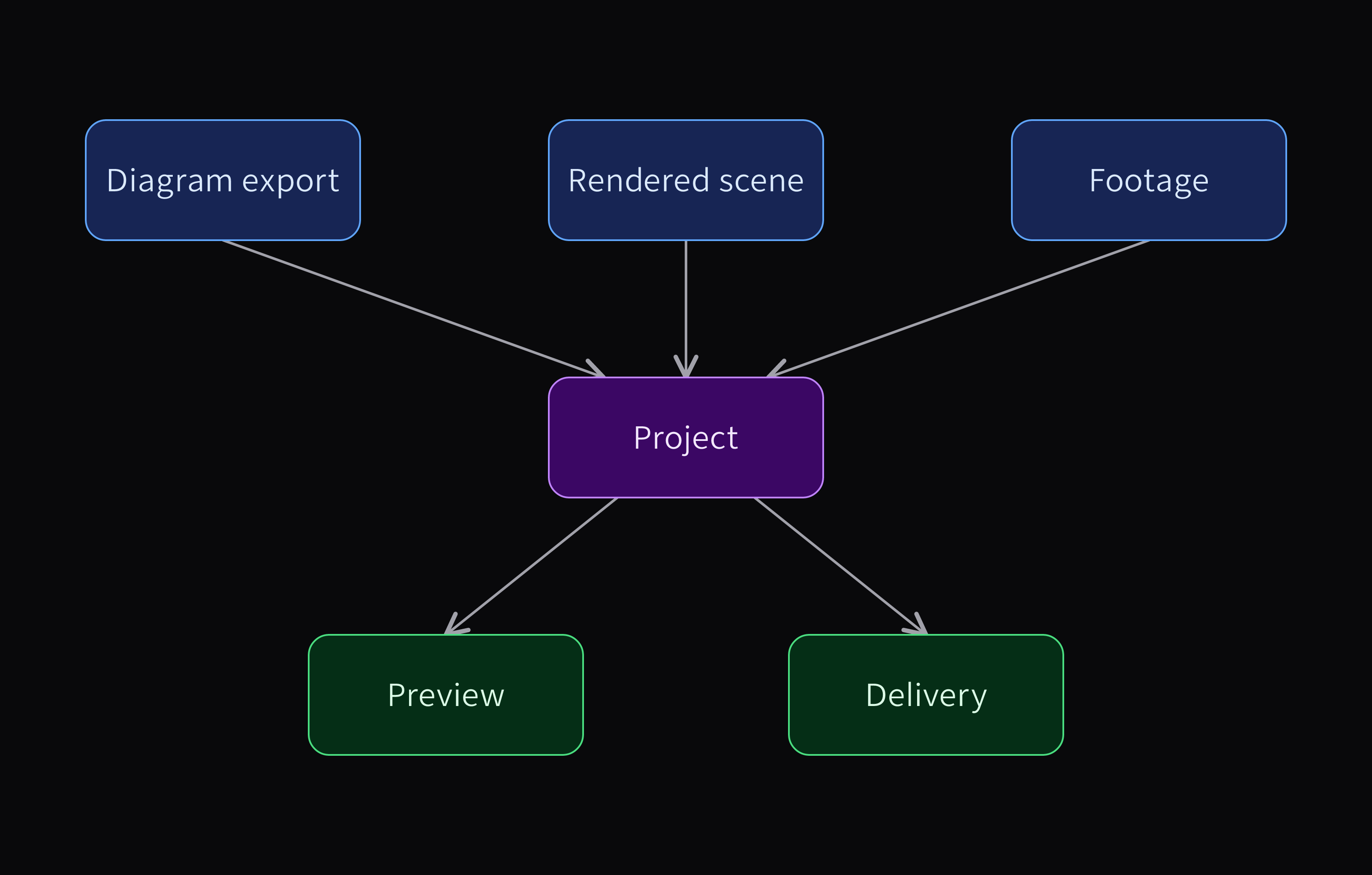
Download the diagram source above and save it as source-to-film.diagram.json, then check and render it with the installed CLI:
slopcamera diagram check source-to-film.diagram.json --strict
slopcamera diagram render source-to-film.diagram.json
The revised source changes “Delivery” to “Social delivery” while preserving the positions, connectors, and other labels. Compare both light outputs and check the dark exports for contrast.
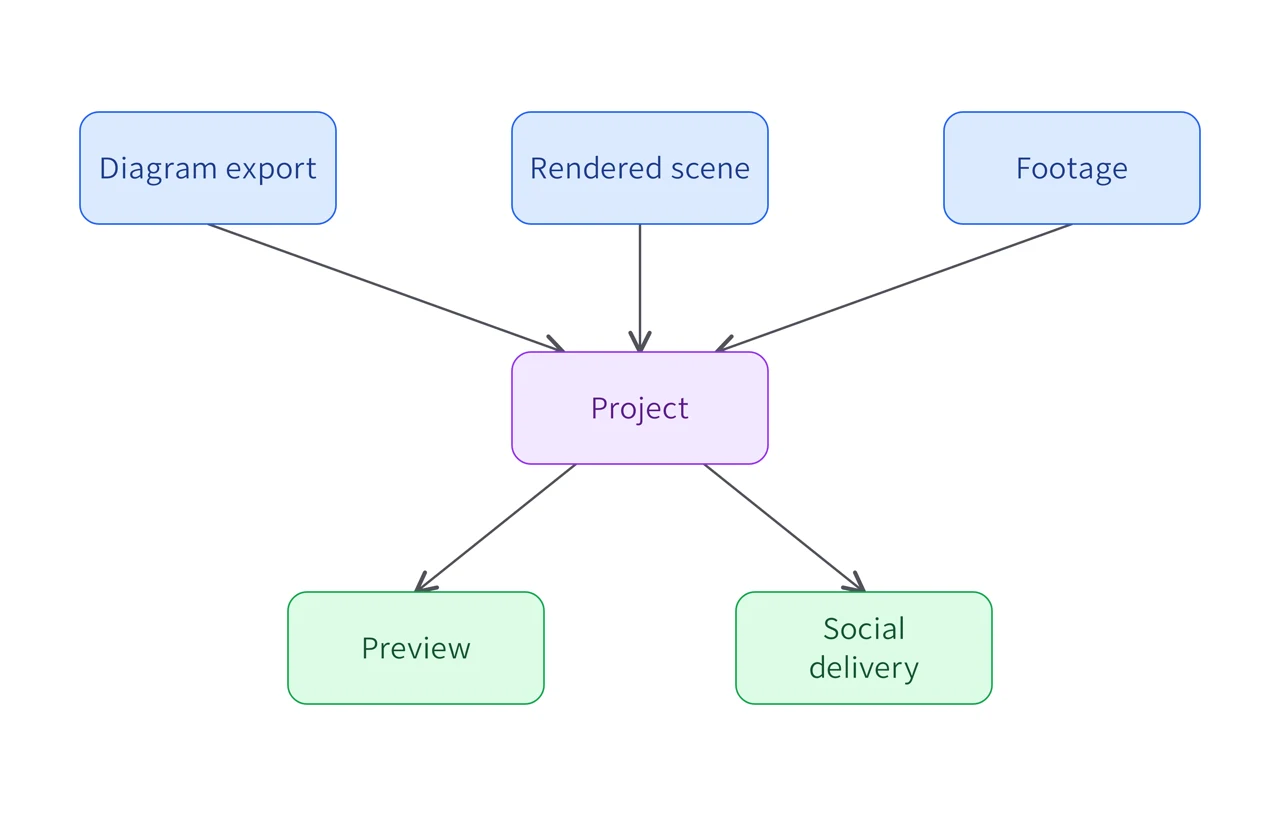
Diagram revision
Revise the deliveryChange one label in the source and render again. The editable canvas and both light and dark exports carry the same revision.
Download this example
Requires: Slopcamera 3.2.8 or later and Bun. Local rendering; no model account.
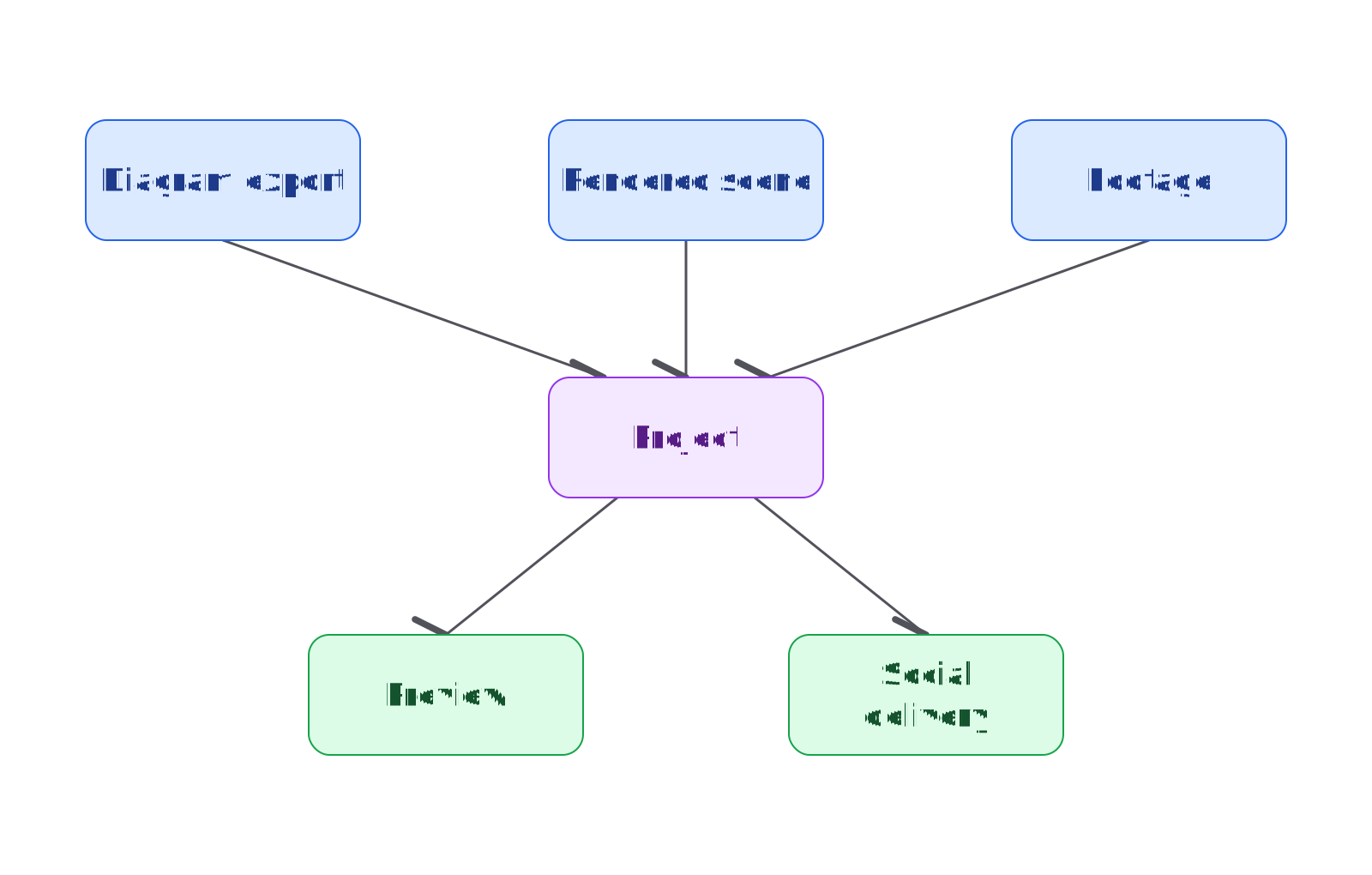
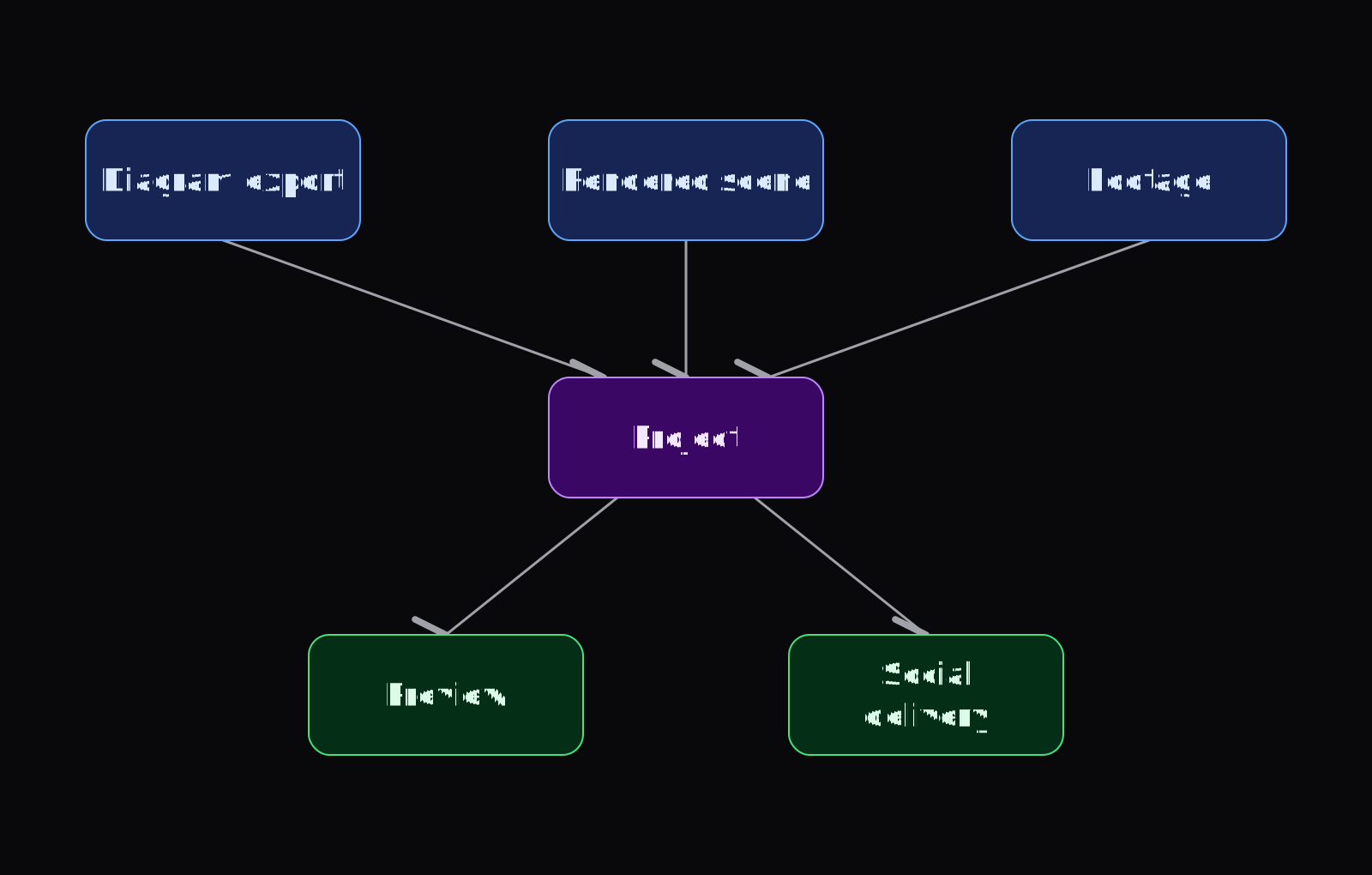
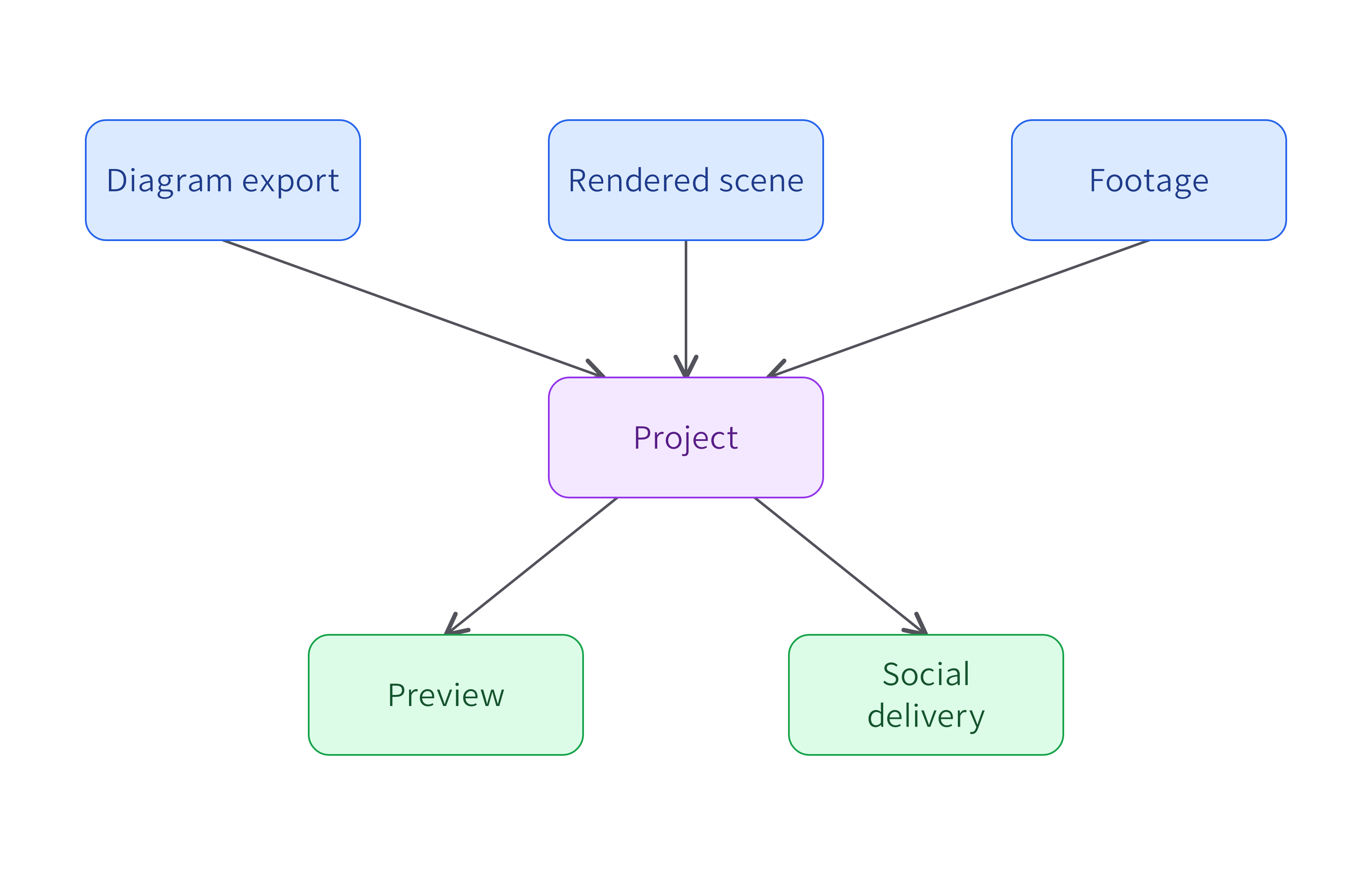
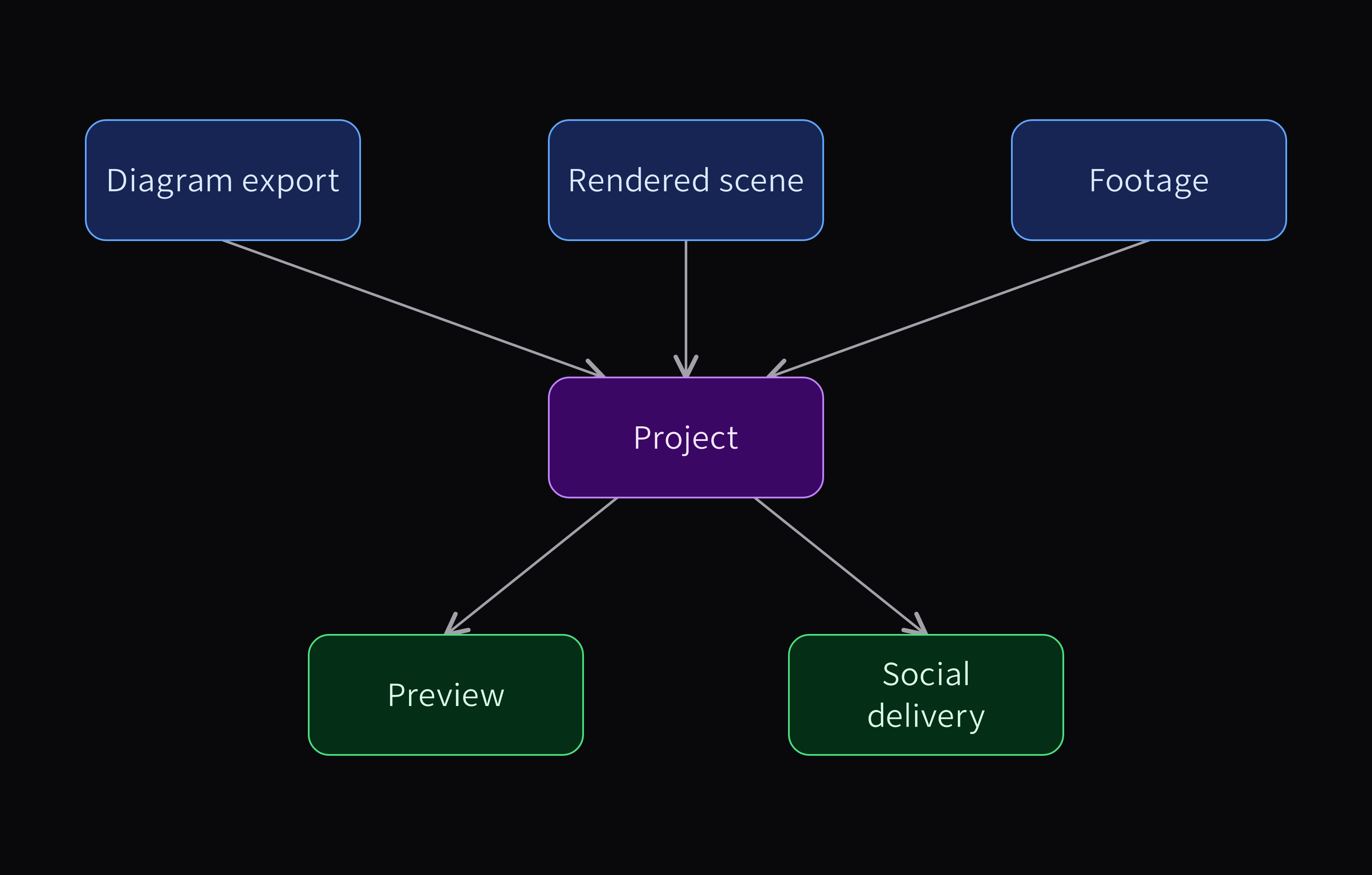
The diagram illustrates media relationships. Importing arbitrary source files does not create a new SlopCamera project; editing and delivery explains the supported entry paths.
Two-row pipeline
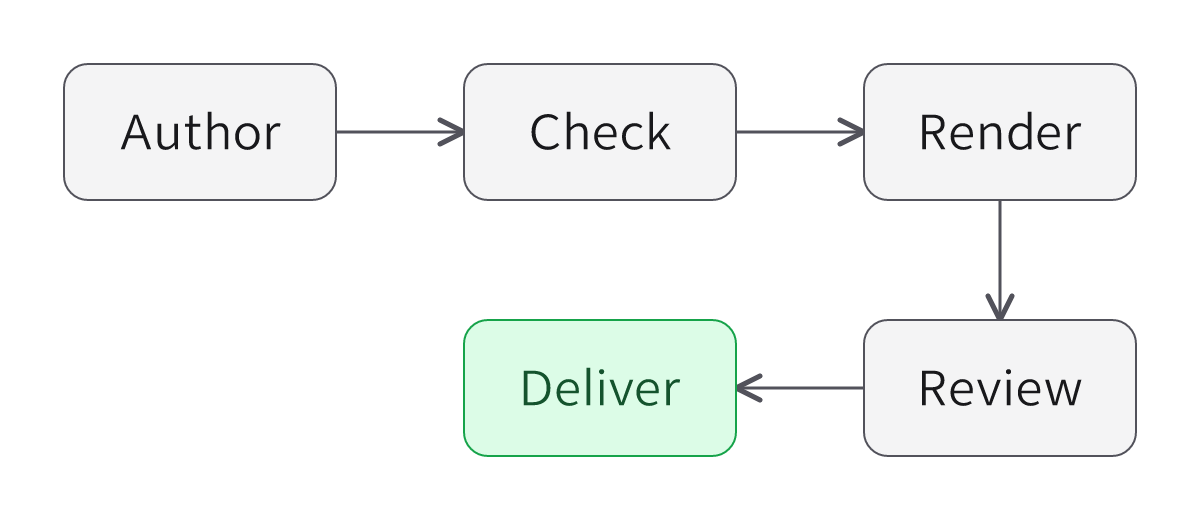
Lay a sequence out horizontally. A diagram about two to three times wider than tall fits a page column without becoming a tower, and its labels stay readable on a phone. A stack like the two-node lesson above suits two to four cards in one row. For a longer sequence, fold it into two rows instead of stacking it vertically.
This source places five equal cards on a 1200×520 canvas. Author, Check and Render run left to right, the flow turns down at the right edge, and Review points back to Deliver. Four explicit arrows state the order, and none crosses the diagram.
Positioned diagram
Fold a pipeline into two rowsFive equal cards and four explicit arrows turn once at the right edge, so the sequence stays wide on a page and readable on a phone. Light, dark and editable exports preserve the declared order.
Download this example
Requires: A repository checkout with locked dependencies and Bun 1.3.14. Local diagram rendering; no account, browser, native engine or paid model.
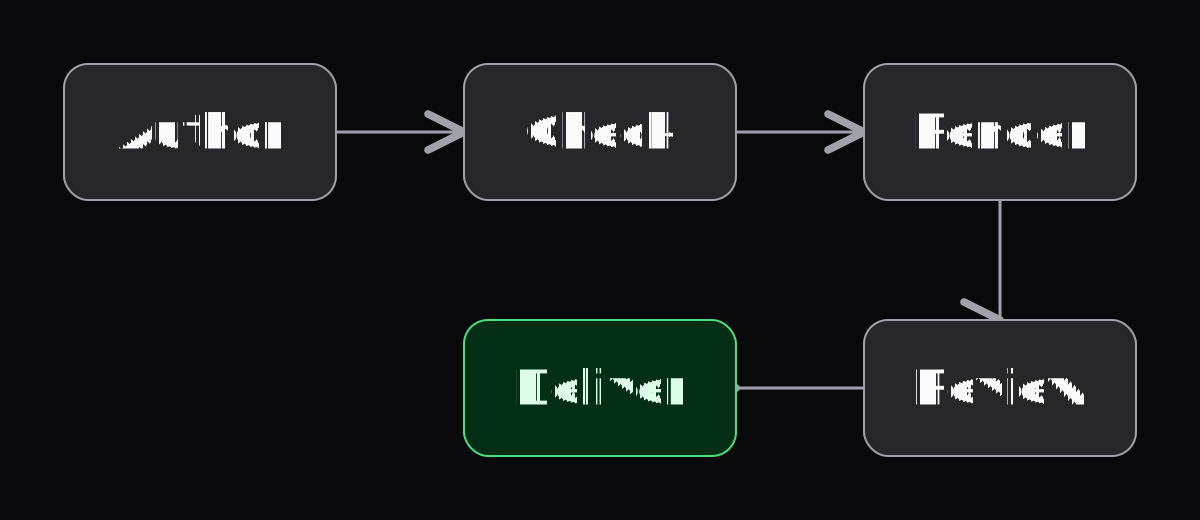
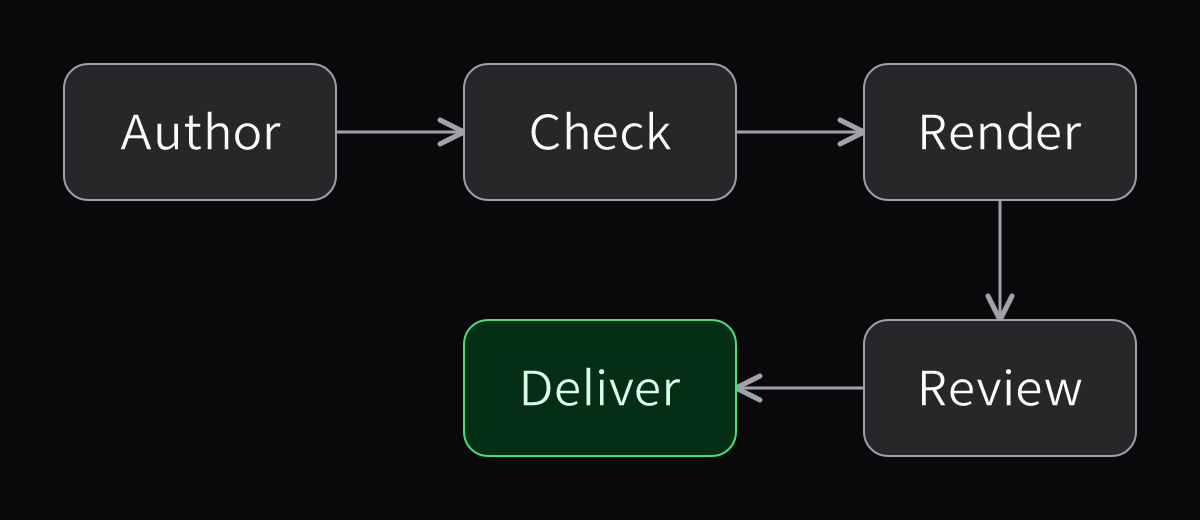
The diagram describes a working sequence. Its check and review cards do not run an automatic scheduler. Download either theme or the editable canvas, or use the source recipe to render both versions from a checkout with locked dependencies.
Since v3.11.0, slopcamera diagram check reports a tall-aspect finding when a canvas is more than 1.5 times taller than wide, and --strict fails on it.
Custom fonts and icons
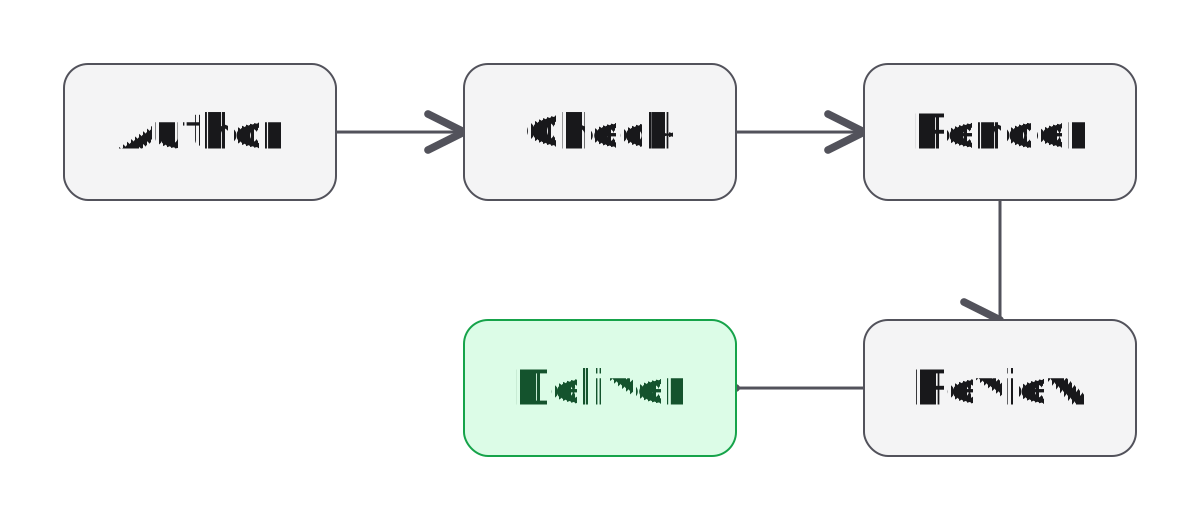
Keep the graph and change its presentation. The second source retains all five labels, the four arrows and every card dimension. Its configuration supplies warm light and ink dark palettes, local Nebula Sans Bold files and five original line icons. The first version uses Book labels without icons.
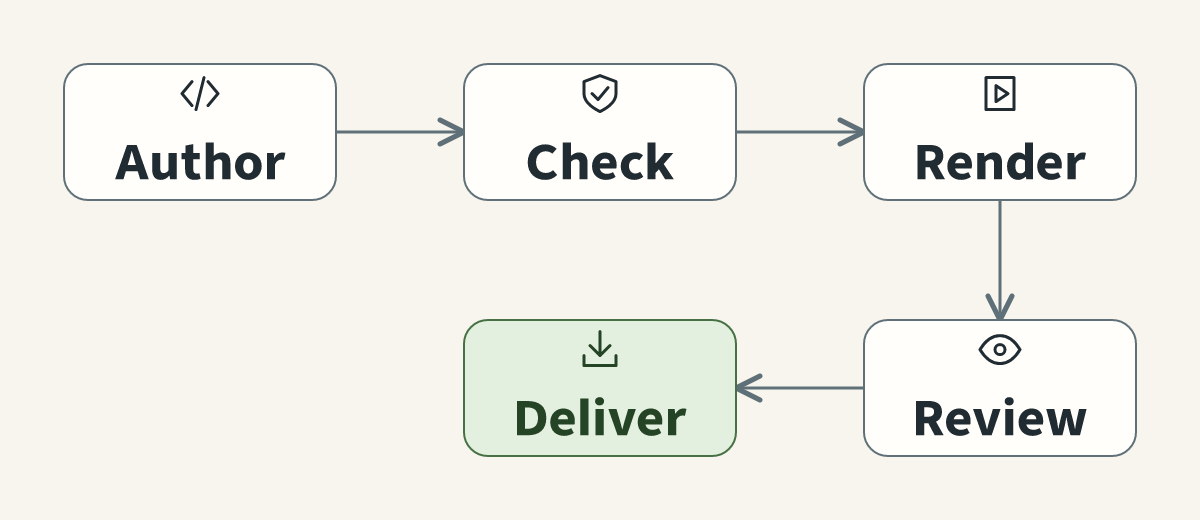
Diagram theme
Apply a house style without changing the graphThe same two-row pipeline uses a warm light palette, an ink dark palette, licensed Nebula Sans Bold and five original line icons. Labels, relationships and geometry stay unchanged.
Download this example
Requires: A repository checkout with locked dependencies and Bun 1.3.14. Local diagram rendering; no account, browser, native engine or paid model.
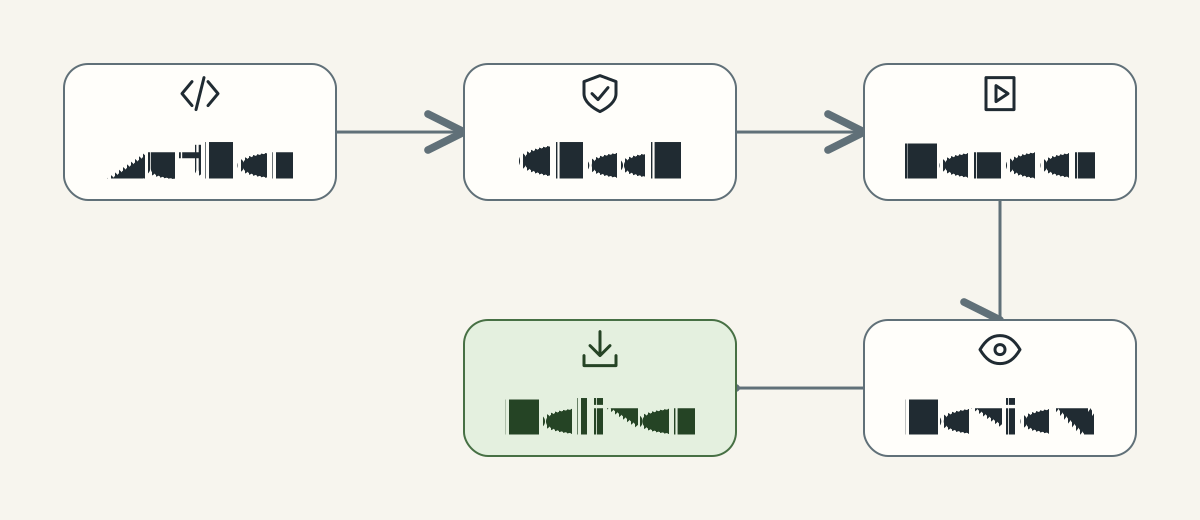
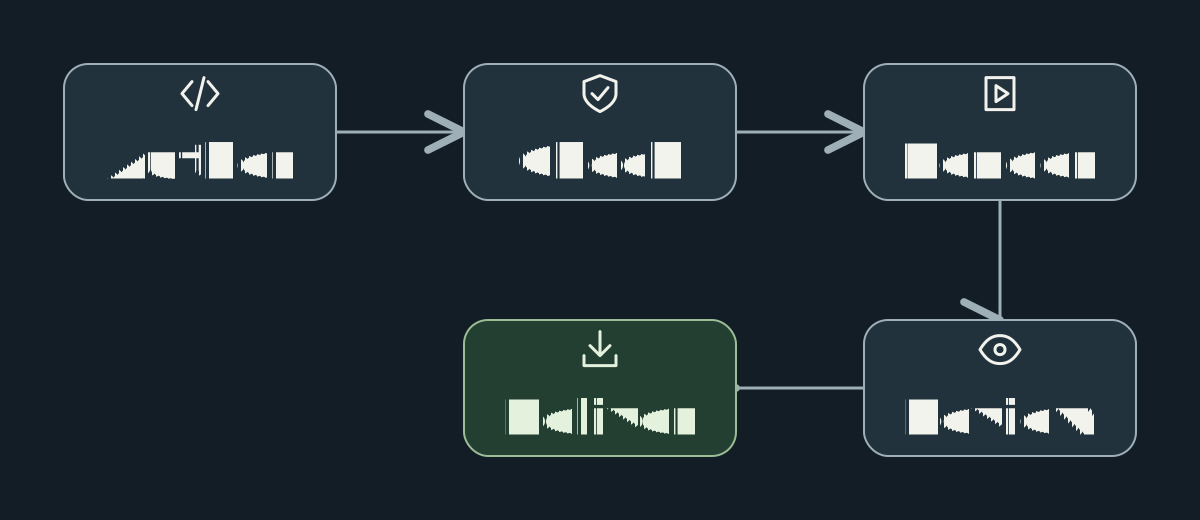
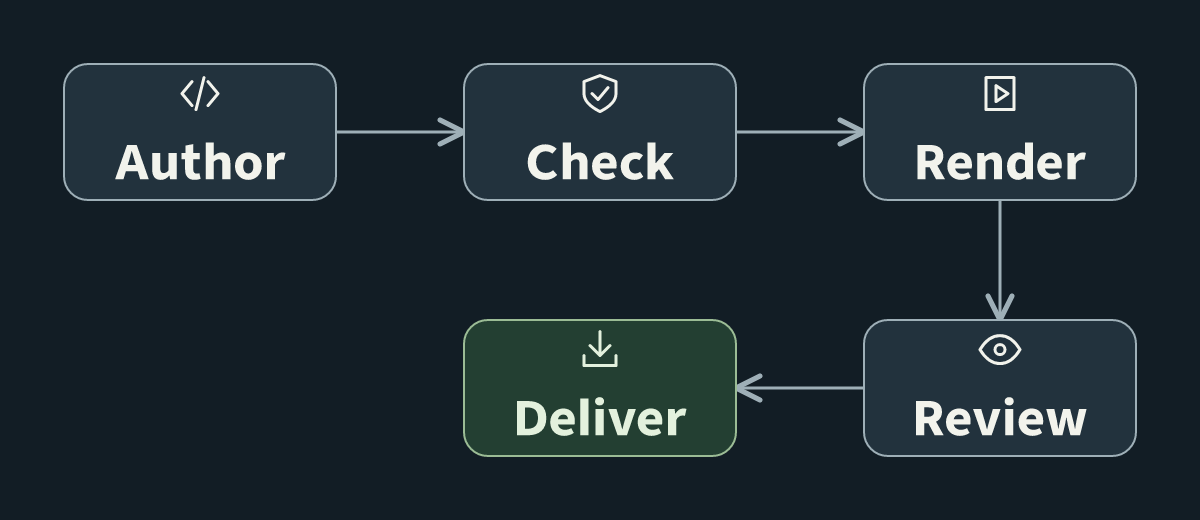
SVG and PNG preserve the chosen font and palette. The editable canvas preserves the cards, labels, bound arrows and movable icons, but uses tldraw's own named font and color styles. The recipe records font and icon provenance; no external font service or paid model is required.
What you learned
You now have one editable source and five derived outputs. This is the pattern behind every SlopCamera workflow: keep the source, re-render the derivatives, and let your agent inspect or revise either.
- For your own diagram, change the labels, shapes, and relationships in that source.
- To give an agent this workflow, install the Agent Skill with
slopcamera skill install --target agents. - When a script should check and render diagrams, use the SDK surfaces.
- To see what else the installed host can do, run
slopcamera doctor --jsonand read the capability reference.